AutoStation setup
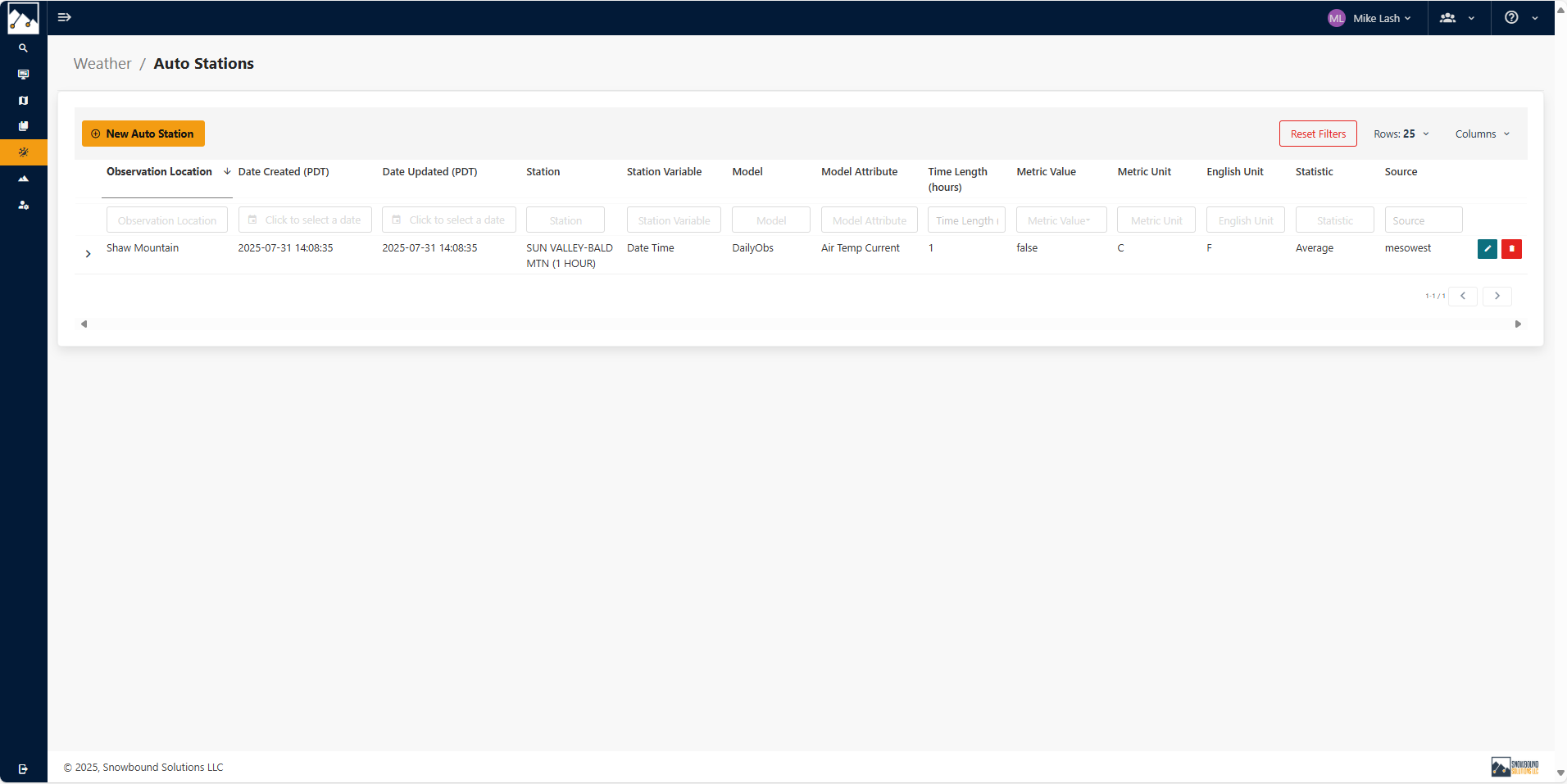
Auto Stations are used to populate the DailyObs forms for a given ObsLocation based on weather station data. The Auto Stations page displays a list of auto stations that have been created and allows the user to create, update and delete Auto Station's.
Creating a New Auto Station
Navigate to Weather > Auto Stations and click the New Auto Station button.
Note
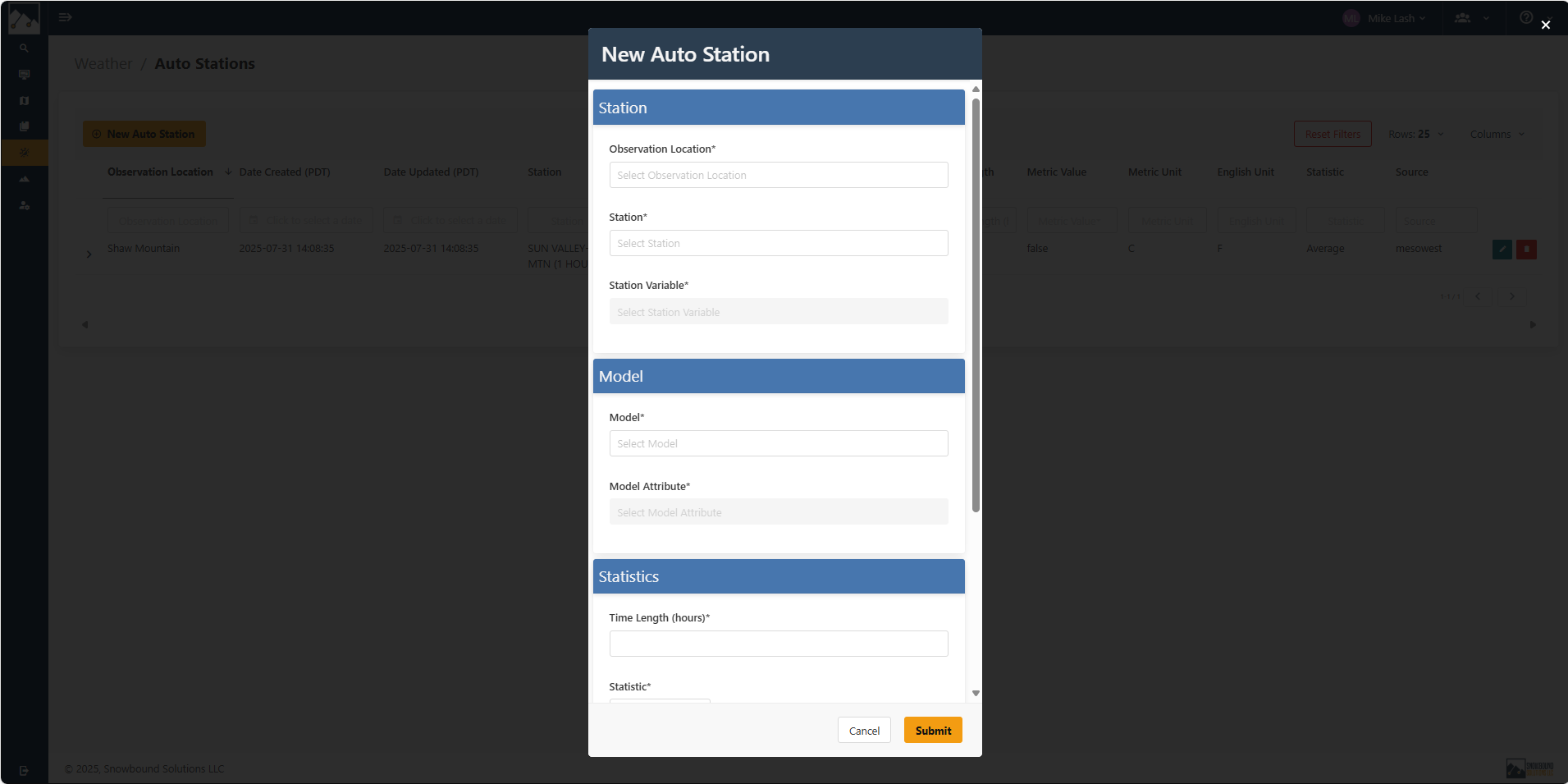
All fields marked with an asterisk (*) are required.
Station
- Observation Location – Select the associated ObsLocation from the dropdown.
- Station – Choose the specific station from the available list. Notice which data source the station belongs to to ensure selecting the correct station.
- Station Variable – Select a variable measured by the station (e.g., snow depth, wind speed).
Model
- Model – Select which form data to populate, options are
DailyObs. - Model Attribute – Select the attribute from the model that matches the station variable.
Statistics
- Time Length (hours) – Enter the time length (in hours) for the calculation.
- Statistic – Select the type of statistic (e.g., Average, Minimum, Maximum).
- Metric Value – Indicate whether a metric value will be used (Yes/No).
- Metric Unit – Choose the appropriate metric unit (e.g., °C, cm, m/s).
- English Unit – Choose the corresponding English/imperial unit (e.g., °F, in, mph).
Click Submit to finalize.
Equation statistic
For Equation, it follows the a*x+b format. The variable selected will be used as the x value and the a and b value are constants. The units will correspond to the variable value and not the resulting value.
Managing Auto Stations
Search an Auto Station
Use the search boxes at the top of the Auto Stations list to filter by any column. Enter text or values to quickly locate the desired station.
Edit an Auto Station
-
Navigate to Weather > Auto Stations.
-
Locate the Auto Station in the list.
-
Select Edit.
-
Update the station details, model attributes, or statistics as needed.
-
Click Submit to apply changes.
Remove an Auto Station
-
Navigate to the Auto Station you wish to remove.
-
Select Delete (if available for your role).
-
Confirm the action.