DailyObs settings
Configure the settings of your DailyObs form by setting defaults, organize groups, and build reusable templates. These settings are found under Settings > General > DailyObs
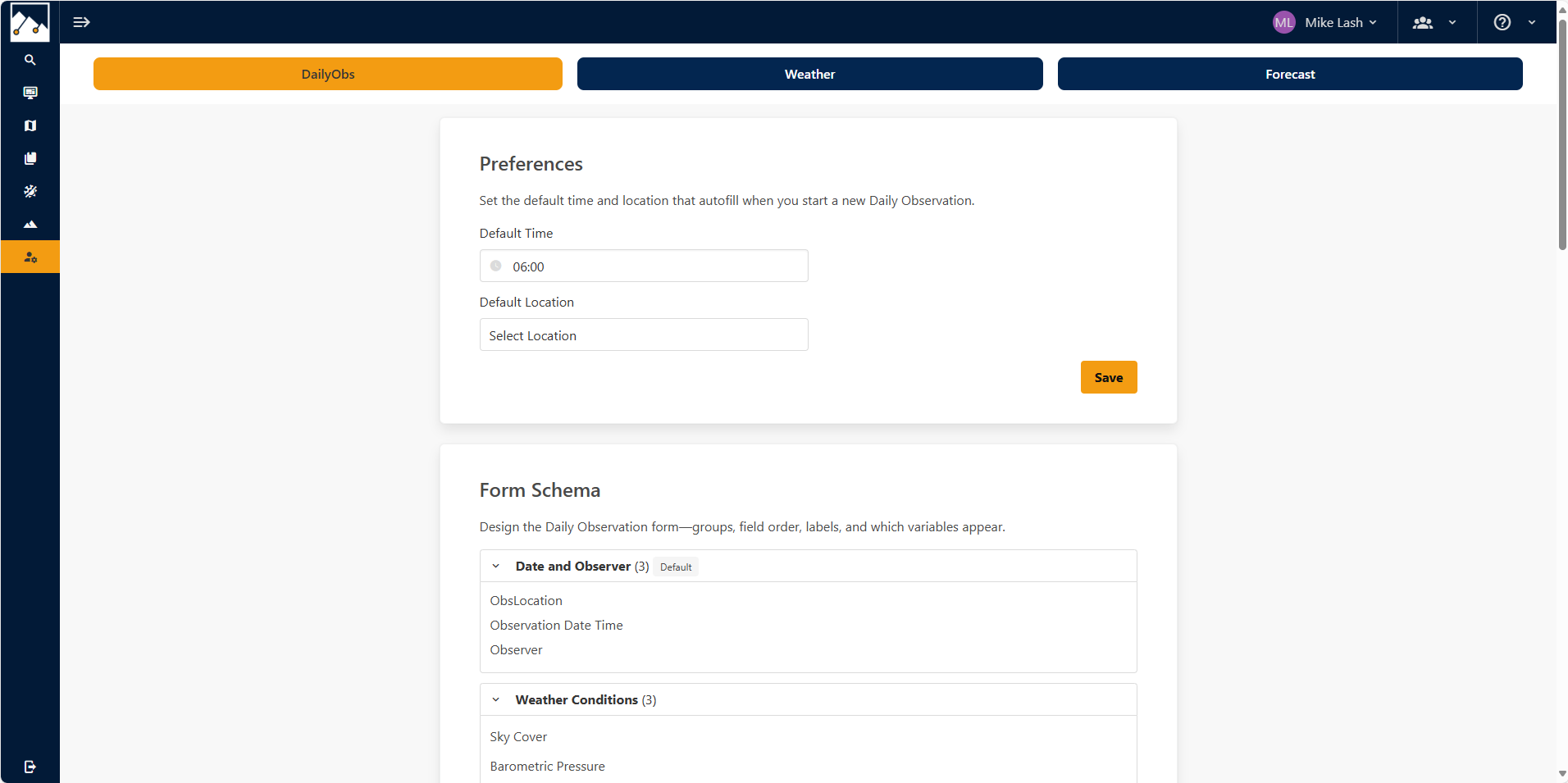
Preferences
-
Default Time
Choose the time that will auto-populate in your observations. -
Default Location
Select the ObsLocation that loads by default. -
Click Save to apply your changes.
Form Schema
The DailyObs form is structured in two levels: groups and variables
- Groups represent the major sections of the form (e.g., Weather, Snowpack, Hazards). You can reorder groups or remove them entirely to customize the flow of your form.
- Variables are the individual fields within each group. Each variable can be reordered, moved to a different group, or removed. Any variables not currently in use will remain available at the bottom of the schema.
Editing Groups
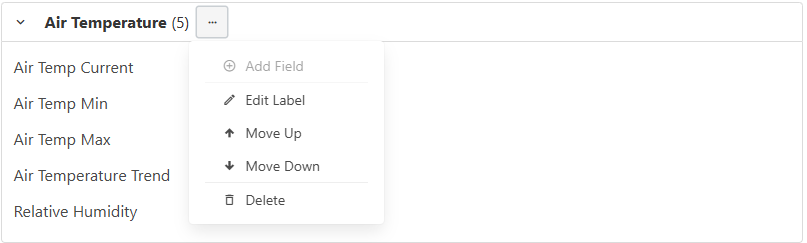
Next to a group name, click the ... (triple-dot) menu.
From this menu, you can:
- Add fields to the group
- Edit labels
- Reorder the group
- Delete the group
Creating a New Group
Click New Group button. Click the ... (triple-dot) menu next to the new group.
From this menu, you can:
- Add fields to the group
- Edit labels
- Reorder the group
- Delete the group
Managing Variables
- Within any group, click the ... (triple-dot) menu next to variable.
- Move variables between groups if needed.
- Position the variable by reordering to the desired location.
- Remove variables from the form if they aren’t needed.
💡 Tip: All unused variables are listed at the bottom for reuse later.
Save Your Changes
Click Save when you’re finished customizing your groups and variables.
Form Templates
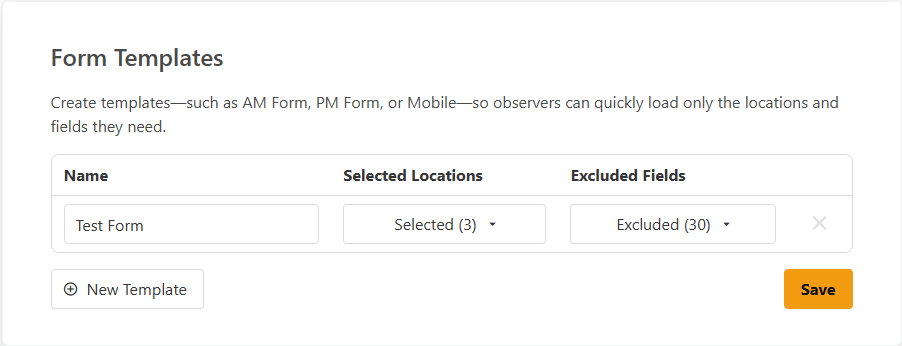
Create templates—such as AM Form, PM Form, or Mobile—so observers can quickly load only the locations and fields they need. These templates group DailyObs forms for quick access when filling out the DailyObs multi-form.
-
Enter a Template Name (e.g., “AM Form,” “Mobile”).
-
Select Locations for which this template applies.
-
Select Fields to exclude, keeping only the ones relevant to your workflow.
-
Click Save to create your template.
💡 Tip: Use separate templates to speed up data entry and reduce errors. For example, group ObsLocations based on their location to enter weather data for a particular zone before moving on to the next zone.