Create DailyObs
A Daily Observation (DailyObs) documents repeated weather observations at an ObsLocation which can be a study plot or remote weather station. These are typically Snow Weather and Avalanche Guidelines (SWAG) compliant and are performed at a study site or remote weather station. Documenting weather over the course of a season allows for trends can be observed that can impact forecasting.
How to Access Daily Observations
The Daily Observations page provides a centralized view of all submitted daily observation records. From this page, you can review existing entries, create a New Daily Observation, and export records to CSV for further analysis or sharing.
Using the Navigation menu: Go to Weather > Daily Observations.
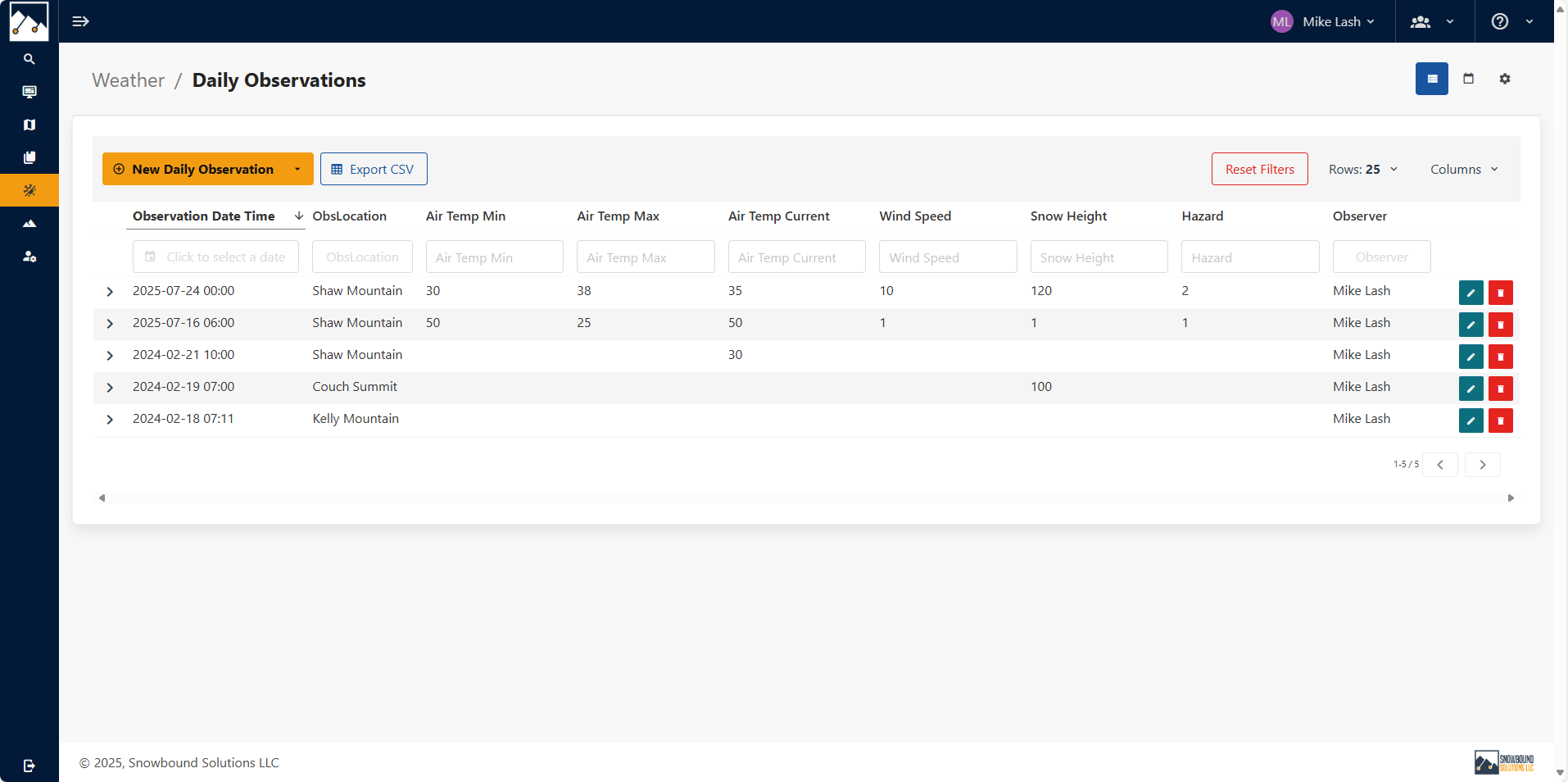
💡 Tip: You can access the Daily Obs page Through the menu, the shortcut on the dashboard or the search shortcut.
Create a New Daily Observation
To create a new Daily Observation, start from the Daily Observations Page which provides 2 ways to enter in DailyObs.
- Single Form: Best for standalone reports; simple and direct.
- Multi-Form: Best for structured, repeated observations; keeps related entries together.
Single DailyObs
Click the New Daily Observation button.
This opens a blank form where you can create a single observation.
Use this option when you only need to log one report at a time. Once the form is open, complete the required fields such as Location, Date, Time, and Observer. The remaining groups—Weather, Snowpack, Precipitation, Hazards, and others—will appear in the schema defined under Settings > General > DailyObs > Form Schema.
Multi-form DailyObs
Click the dropdown arrow next to the New Daily Observation button to view the multi-form templates.
This allows you to use a form template you might have configured and created (for example, AM/PM reports or multiple locations).
Use this option when efficiency is important and you want all entries grouped together.
💡 All of the fields are in the SWAGuidelines (American Avalanche Association). For a full list of variables and definitions, refer to the SWAG reference.
How to view or share your DailyObs records
DailyObs records can be viewed in either Table View or Calendar View, depending on how you prefer to browse and interact with your data.
Table View
- The table provides a detailed, filterable list of all DailyObs records.
- Each column can be filtered directly. Use operators such as
>,>=,<, or=to refine results (e.g., filter by snowfall greater than 20 cm). - You can search by location, date, observer, or any other field.
- To view the full details of a record, click on it within the table. This opens the detail of the record, where you can see all submitted values.
- From the table view, you can also:
- Edit a record to make changes.
- Delete a record if it is no longer needed.
Calendar View
- The calendar provides a filterable view of DailyObs records on a calendar. Each DailyObs is displayed on its observation date.
- You can filter the DailyObs calendar view by choosing a specific date and location. You can also select which field variables to view.
- To view the full details of a record, click on it within the calendar day. This opens the detail of the record, where you can see all submitted values.
- From the table view, you can also:
- Edit a record to make changes.
- Delete a record if it is no longer needed.
- A new DailyObs can be created from the calender view by clicking on the New button.
Export Options
- At any time from the table view, you can export your filtered set of records by clicking Export > CSV.
- This lets you download the filtered data for offline analysis, sharing, or archiving. Useful for exporting data for a specific location.