Reset your Password
This guide provides instructions for resetting your SnowObs account password, with two options available to users.
Option #1: Reset password via SnowObs login page.
Steps:
- Navigate to SnowObs login page.
-
Select the Forgot Password link.
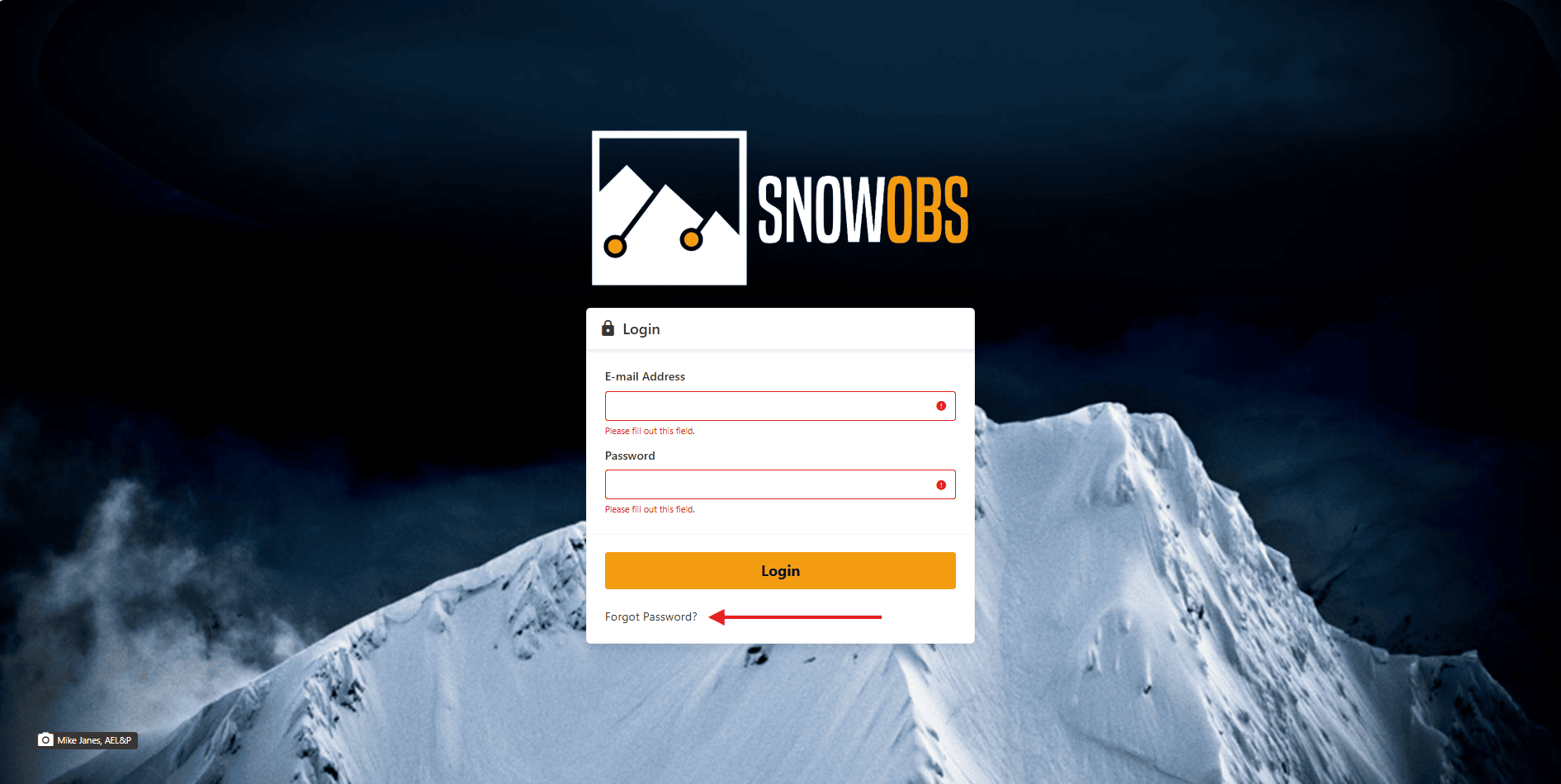
-
The user will receive an email from the SnowObs Team with a link to reset the password . If you do not receive an email, check your spam folder and that you entered in the correct email for the SnowObs account. Open the email and select the Reset Password button. The user will be navigated to the Password Reset Page.
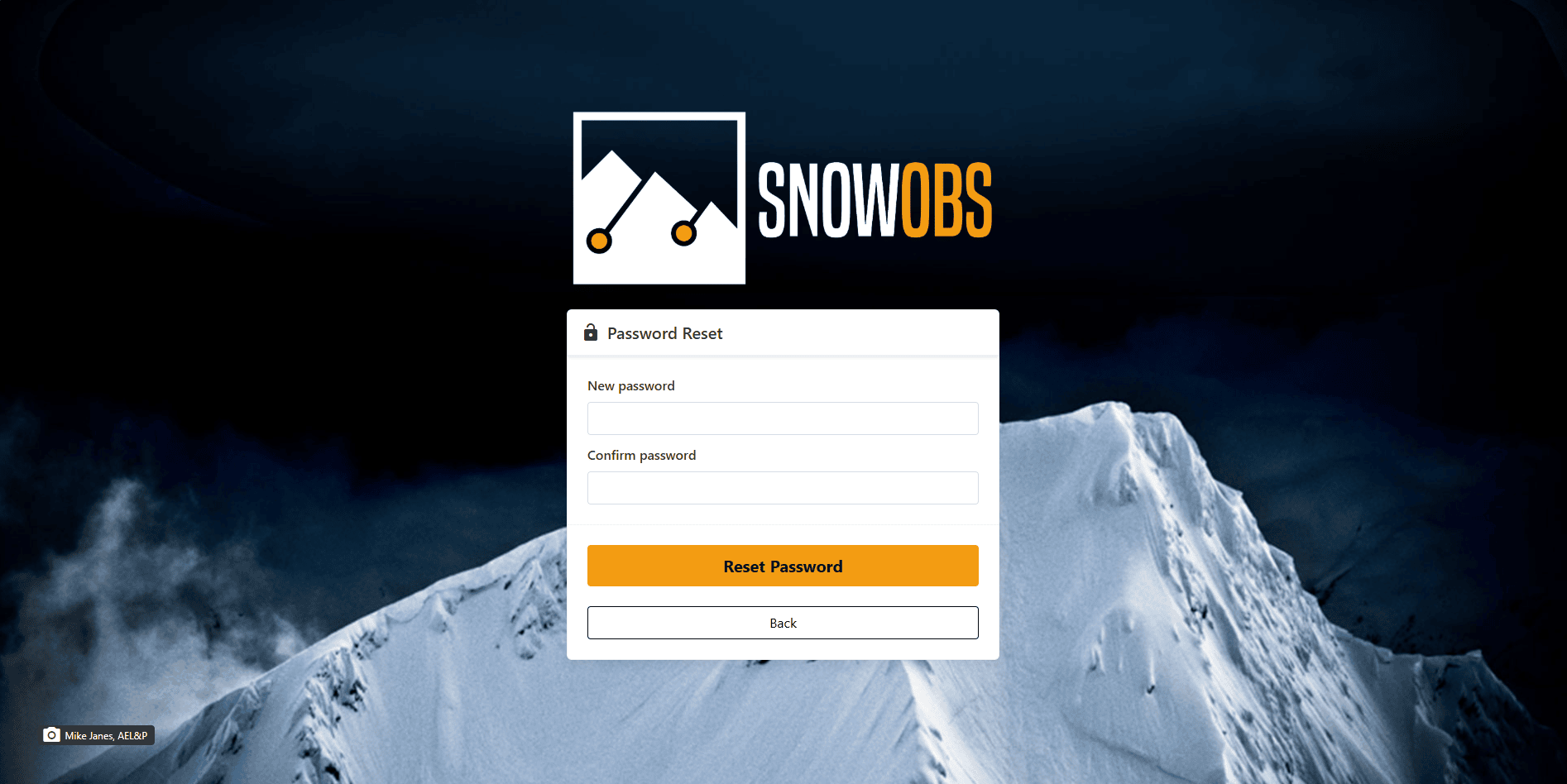
-
Enter new password information and select the Reset Password button. The user will be sent an email if the request was successful.
Note
The link is a one time use and will expire in 1 hour.
Option #2: Change password in Settings while logged into SnowObs account.
Steps:
-
Navigate to Settings > Users.
-
Select which user to edit password information and select the edit button for the User.
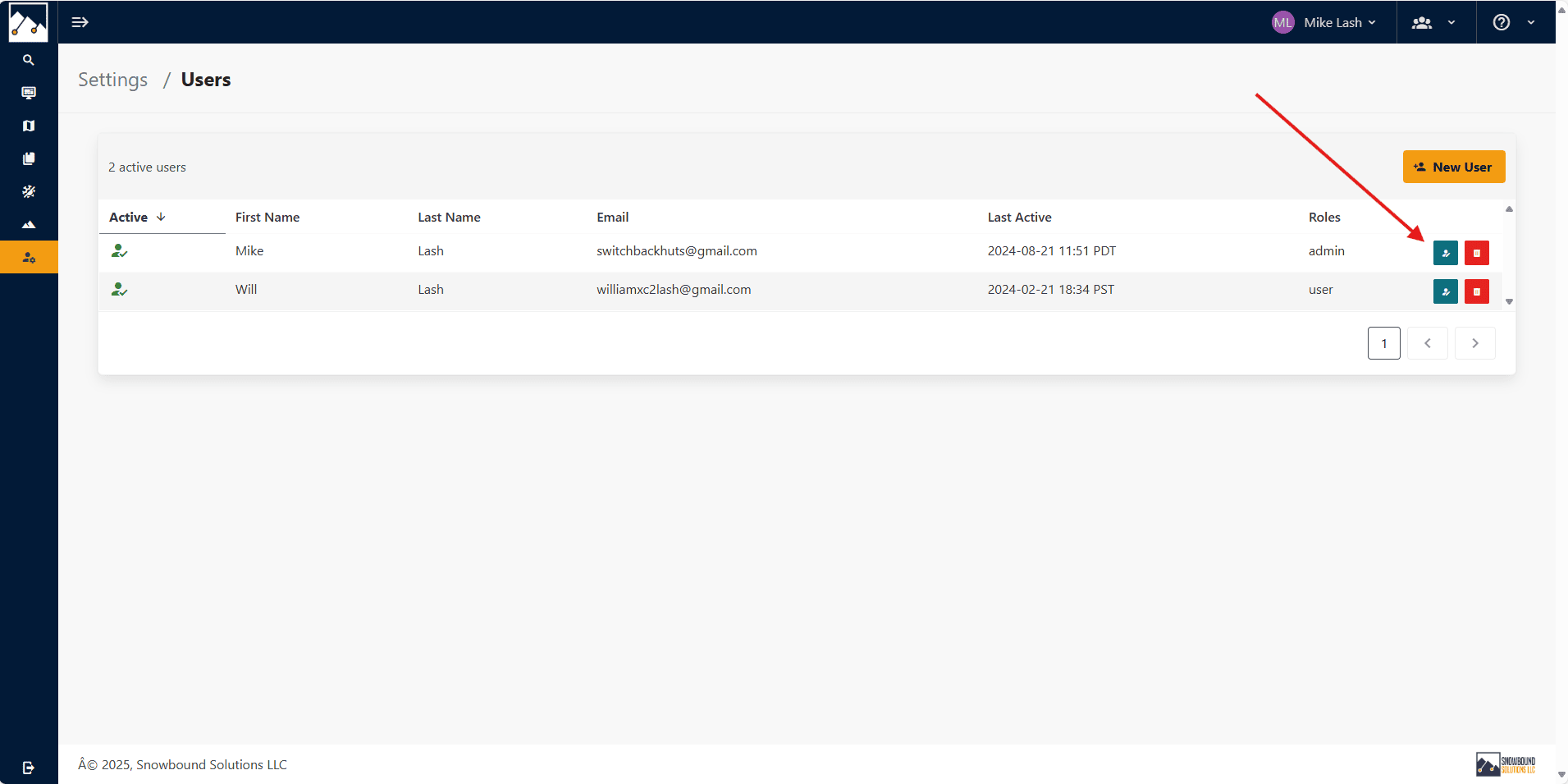
-
Enter in the new password information and select the Submit button. The user will receive a 'Password reset successful" email.
If you have any problems resetting a password please contact support@snowboundsolutions.com.